Originally published on Medium on September 25, 2022.

Photo by Jeremy Bezanger on Unsplash
We’ll see how to implement a crypto ticker in Go using live data from the Coinbase Pro API and Influx DB 2 to store and plot data. All the code for this story is available in my GitHub repository.
Architecture
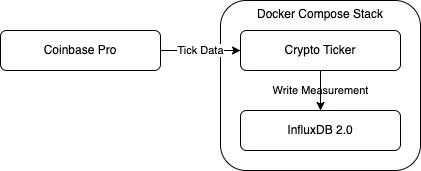
- The crypto ticker connects to the Coinbase Pro API using a WebSocket and subscribes to cryptocurrency’s price information for a given pair, e.g. BTC-USD.
- The Coinbase server starts streaming the price data to the ticker which inserts it into InfluxDB as a measurement.
- Finally, we connect to the database UI on http://localhost:8086/
The Crypto Ticker
The ticker’s role is extremely simple:
- Connect to InfluxDB:
// Create new influxdb client with default option for server url authenticate by token
influxdb := influxdb2.NewClient(cfg.InfluxDB.URL, cfg.InfluxDB.Token)
defer influxdb.Close()

// User blocking write to the desired bucket
writeAPI := influxdb.WriteAPIBlocking(cfg.InfluxDB.Org, cfg.InfluxDB.Bucket)influxdb.go- Subscribe to the Coinbase API using a WebSocket. Thankfully for us, the Coinbase WebSocket API allows anonymous access, it’s not required to create an API key to access tick data:
// Create a websocket to receive tick data from Coinbase
var wsDialer websocket.Dialer
ws, _, err := wsDialer.Dial("wss://ws-feed.pro.coinbase.com", nil)
if err != nil {
	log.Fatal().Err(err).Send()
}

// Subscription message
subscribe := coinbasepro.Message{
	Type:       "subscribe",
	ProductIds: []string{"BTC-USD", "ETH-USD"},
	Channels: []coinbasepro.MessageChannel{
		{
			Name: "ticker",
		},
	},
}

// Subscribe
if err := ws.WriteJSON(subscribe); err != nil {
	log.Fatal().Err(err).Send()
}coinbase.go- Each time a tick is received, write it into InfluxDB:
// Read ticks from the websocket
messages := make(chan coinbasepro.Message)
go func() {
	defer close(messages)
	for {
		// Read tick data from websocket
		message := coinbasepro.Message{}
		if err := ws.ReadJSON(&message); err != nil {
			log.Error().Err(err).Send()
			break
		}
		log.Info().Str("product", message.ProductID).Str("price", message.Price).Send()

		messages <- message
	}
}()

// Write ticks data into InfluxDB
for message := range messages {
	// Convert price to float
	price, err := strconv.ParseFloat(message.Price, 64)
	if err != nil {
		log.Error().Err(err).Send()
		continue
	}

	// Create point using full params constructor
	p := influxdb2.NewPoint("tick",
		map[string]string{"product": message.ProductID},
		map[string]interface{}{"price": price},
		time.Now())

	// Write point immediately
	if err := writeAPI.WritePoint(context.Background(), p); err != nil {
		log.Error().Err(err).Send()
	}
}insert.go
InfluxDB
InfluxDB is a time series database perfectly suited for our use case. Since we are building a real-time ticker, we receive events from Coinbase every time there’s a transaction, multiple times a second. This time resolution is very precise, allowing for all sorts of real-time computation.
However, after about an hour, our data is obsolete, so we configure our bucket retention accordingly. InfluxDB will simply discard outdated data for us.
Running InfluxDB as a Container
To configure the InfluxDB container, we must run it in automated setup mode. The InfluxDB image contains some functionality to bootstrap the system automatically. This is enabled by setting the DOCKER_INFLUXDB_INIT_MODE environment variable to the value setup when running the container:
influxdb:
  image: influxdb:2.4.0-alpine
  environment:
    DOCKER_INFLUXDB_INIT_MODE: setup
    DOCKER_INFLUXDB_INIT_USERNAME: ${APP_INFLUXDB_USER}
    DOCKER_INFLUXDB_INIT_PASSWORD: ${APP_INFLUXDB_PASSWORD}
    DOCKER_INFLUXDB_INIT_ORG: ${APP_INFLUXDB_ORG}
    DOCKER_INFLUXDB_INIT_BUCKET: ${APP_INFLUXDB_BUCKET}
    DOCKER_INFLUXDB_INIT_RETENTION: "1h"
    DOCKER_INFLUXDB_INIT_ADMIN_TOKEN: ${APP_INFLUXDB_TOKEN}
  ports:
  - "8086:8086"
  volumes:
  - influxdb-data:/var/lib/influxdb2
  - ./influxdb/init:/docker-entrypoint-initdb.dinfluxdb.yml
InfluxDB 2.0 Automated Setup
DOCKER_INFLUXDB_INIT_USERNAME: The username to set for the system’s initial super-user (Required).DOCKER_INFLUXDB_INIT_PASSWORD: The password to set for the system’s initial super-user (Required).DOCKER_INFLUXDB_INIT_ORG: The name to set for the system’s initial organization (Required).DOCKER_INFLUXDB_INIT_BUCKET: The name to set for the system’s initial bucket (Required).DOCKER_INFLUXDB_INIT_RETENTION: The duration of the system’s initial bucket should retain data. One hour for our use case.DOCKER_INFLUXDB_INIT_ADMIN_TOKEN: The authentication token to associate with the system’s initial super-user. If not set, a token will be auto-generated by the system.
I’m using direnv to provide the environment variable substitutions to the Docker Compose file.
We are also exposing the InfluxDB port to the host so that we can connect to the UI.
Finally, we provide an initialization script in the /docker-entrypoint-initdb.d folder to import a predefined dashboard. We are mounting the ./influxdb/initfolder:
influxdb
└── init
    ├── init.sh
    └── templates
        └── tickers.yaml
Wrapping it All Up
Now that we have configured everything, we can just start the stack using:
make startYou can now connect to the UI on http://localhost:8086/ and check the dashboard:
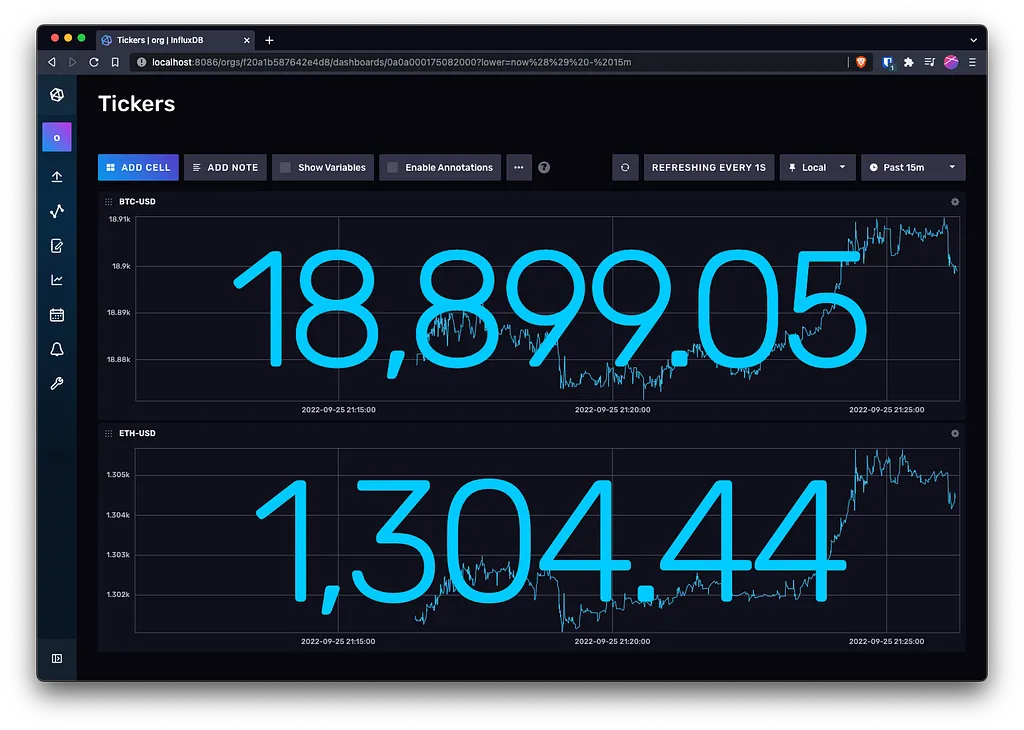
Crypto Ticker using InfluxDB UI
Tada! Now you have your own real-time crypto ticker up and running. You can now learn more about the Flux language to build your own metrics!